
Self-host VoiceStudio
Your own text-to-speech and voice studio, on CPU, behind exe.dev login.
Shelley handles the setup. About 20 minutes. Needs a 60 GB disk: Shelley sends you a link to grow it.
Prefer a terminal?
curl -fsSL https://exe-staging.dev/deploy/voicestudio/prompt.txt | ssh exe.dev new --disk=60GB --prompt=/dev/stdinVoiceStudio is an open-source voice studio: type a script and hear it read aloud, design a voice from a description, clone one from a short clip, transcribe recordings, dub videos, and build audiobooks, in hundreds of languages. It runs its models on its own machine, so your scripts and recordings never go to a speech service.
Here that machine is an exe.dev VM. There's no GPU, so VoiceStudio runs on the CPU: slower, but always on, private behind exe.dev login, and reachable from your browser, your apps through an OpenAI-style API, and your agents through MCP. Your voices and projects stay on the VM's disk, backed up every night.
What you get#
- VoiceStudio at the VM's private URL, locked with an API key kept in ~/voicestudio/.env.
- Speech and transcription on the VM's CPU, checked with a short test clip.
- Voices, projects, settings and models on the VM's disk, kept across restarts and updates.
- Starts again after a reboot; nightly backups, with one checked.
What's running, and where
https://my-voicestudio.exe.xyz/
The studio, after exe.dev login and VoiceStudio's API key
https://my-voicestudio.exe.xyz/v1/
OpenAI-style speech and transcription API, with a VM token and the API key
https://my-voicestudio.exe.xyz/mcp/
MCP server for agents, with the same two credentials
Deploy with Shelley#
Click Deploy and Shelley will set up VoiceStudio on a new VM, then check that it works. No config-file wrangling required.
VoiceStudio needs a 60 GB disk, more than a new VM has. Shelley checks first and, if it's too small, gives you a link to grow it; the terminal command below makes the VM that size from the start.
Prefer a terminal?
curl -fsSL \
  https://exe-staging.dev/deploy/voicestudio/prompt.txt \
  | ssh exe.dev new --disk=60GB --prompt=/dev/stdin
What Shelley is told
Set up VoiceStudio on this VM by following the exe.dev recipe at https://exe-staging.dev/deploy/voicestudio.md from top to bottom.

The recipe's example VM name is my-voicestudio. This VM's name is the output of `hostname`: use it wherever the recipe writes my-voicestudio. Skip the step that creates the VM; you are on it.

This recipe needs a 60GB disk, and a new VM's may be smaller. Before you install anything, run `df -h /`. If its size is under 54G, stop and ask me to grow the disk, either with this link: https://exe.dev/suggest?command=resize%20my-voicestudio%20--disk%3D60GB or, on my computer, with `ssh exe.dev resize my-voicestudio --disk=60GB`. When I say it's done, run `sudo resize2fs "$(findmnt -no SOURCE /)"`, check `df -h /` again, and carry on.

You are done when all of these are true. Check each one yourself:
- VoiceStudio at the VM's private URL, locked with an API key kept in ~/voicestudio/.env.
- Speech and transcription on the VM's CPU, checked with a short test clip.
- Voices, projects, settings and models on the VM's disk, kept across restarts and updates.
- Starts again after a reboot; nightly backups, with one checked.

Read the whole recipe, including the closed details. For initial setup,
follow "Install by hand", skipping VM creation and SSH: room on the disk,
Docker, Start VoiceStudio, Check speech, the backup timer and the backup
check. The walkthrough at the top is for the owner afterwards. Do not run
Restore or Update.
Work as exedev in ~/voicestudio. Never overwrite an existing .env.
Do not accept any model licence for the owner, and do not run the
first-run wizard in a browser: the owner does both. Do not share the VM
or make it public.
Verify docker.service is enabled and the container uses unless-stopped;
do not reboot. Finish with the studio URL and the command from "Open the
studio" that prints the API key; don't paste the key into the chat.

Finish with the URLs I should open.
Also at /deploy/voicestudio/prompt.txt. The recipe it follows is /deploy/voicestudio.md.
Open the studio#
VoiceStudio asks for an API key, its admin password. Shelley made one when it installed VoiceStudio. On your computer, print it:
ssh my-voicestudio.exe.xyz sed -n s/^OMNIVOICE_API_KEY=//p voicestudio/.env
Open https://my-voicestudio.exe.xyz/, sign in to exe.dev if asked, and
paste the key into API key. VoiceStudio keeps you signed in for up to
eight hours, and until it restarts; then it asks for the key again. A
password manager helps.
The first time, a short setup follows:
- System check finds no GPU and says everything runs on the CPU. Continue.
- Model packs: choose Fast and Install Fast pack (2.7 GB, about two minutes). When every model says installed, press Use Fast pack, then continue.
- Privacy: choose No thanks. The VM is set up never to send usage statistics anyway.
- Enter studio. Skip Try Dictation; it is meant for the desktop app.
The first time you synthesize with the default model, VoiceStudio asks you to accept its licence. Read it: the OmniVoice weights are for personal and research use only. If that doesn't fit, close it and switch to KittenTTS.
Make some speech#
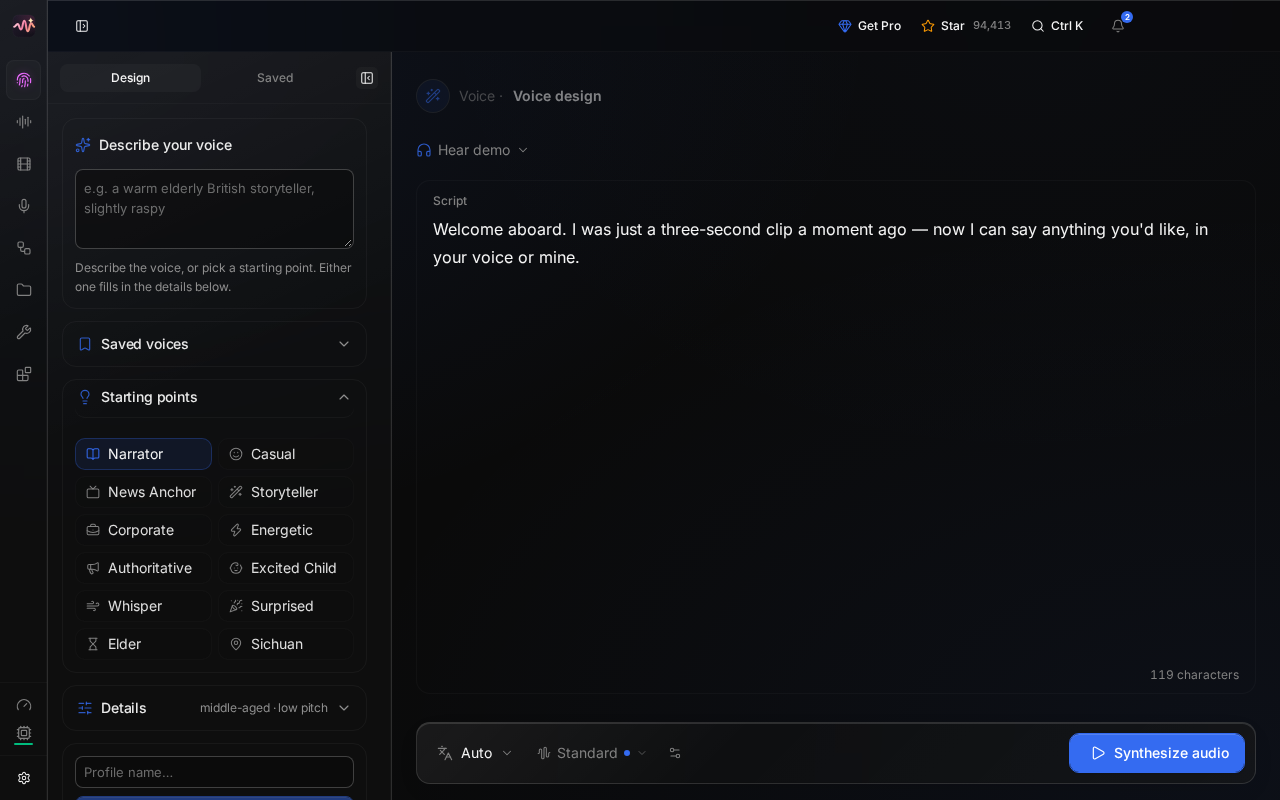
- Design: pick a starting point such as Narrator, or describe a voice ("a warm elderly British storyteller"), edit the script, and press Synthesize audio. Save as voice profile keeps the voice.
- Voice cloning: add a recording with 5-15 seconds of clean speech, check the transcript, and save it as a voice. Only clone voices you have permission to use.
- Gallery has hundreds of ready-made voices. Audiobook, Stories and Dubbing build longer pieces from them.
- Transcribe turns uploaded recordings into text.
Your takes are kept under Recents in the sidebar. Generated audio carries an invisible watermark marking it as AI-made; it's on by default, under Settings → Privacy.
Choose an engine#
VoiceStudio has many speech engines; on a CPU, two matter. We measured them on a default VM (2 vCPUs, 8 GB):
| Engine | Speed on 2 vCPUs | Voices | Model licence |
|---|---|---|---|
| VoiceStudio (OmniVoice), the default | about 10 s of work per second of speech | cloning, design, 600+ languages | CC-BY-NC: personal and research use |
| KittenTTS | about 3x faster than real time | 8 preset voices, English | Apache-2.0 |
Shelley installed KittenTTS (80 MB) while setting up. To make it the
default, open Settings → Models → TTS and press Select on
KittenTTS. Apps can also pick per request with "model": "kittentts".
For transcription, setup turned on Whisper base, which is quick (2 seconds for a short sentence) but not the most accurate. For better results, Download a larger model under Settings → Models → ASR and select it: Whisper large-v3 Turbo (1.6 GB) took 20 seconds for a 7-second clip.
For faster speech, give the VM more CPUs. On your computer:
ssh exe.dev resize my-voicestudio --cpu=4 --memory=16GB
Use it from apps#
VoiceStudio answers OpenAI's audio API: POST /v1/audio/speech and
POST /v1/audio/transcriptions. The voice can be an OpenAI name like
alloy (the engine's default voice) or one of your saved voices, by name or
id; GET /v1/audio/voices lists them.
On the VM itself, send the API key:
key=$(sed -n 's/^OMNIVOICE_API_KEY=//p' ~/voicestudio/.env)
curl -fsS http://localhost:8000/v1/audio/speech \
  -H "Authorization: Bearer $key" -H 'Content-Type: application/json' \
  -d '{"model":"kittentts","voice":"alloy","input":"Hello from my own voice server.","response_format":"wav"}' \
  -o hello.wav
From anywhere else, the request first has to get past exe.dev's login. Make a token for this VM's HTTPS proxy, on your computer:
ssh exe.dev ssh-key generate-api-key --vm=my-voicestudio --label=voicestudio
Send it as X-Exedev-Authorization, beside the VoiceStudio key. The proxy
checks and removes the first; VoiceStudio checks the second:
curl -fsS https://my-voicestudio.exe.xyz/v1/audio/speech \
  -H "X-Exedev-Authorization: Bearer $EXE_TOKEN" \
  -H "Authorization: Bearer $VOICESTUDIO_KEY" \
  -H 'Content-Type: application/json' \
  -d '{"model":"kittentts","voice":"alloy","input":"Hello from my own voice server.","response_format":"wav"}' \
  -o hello.wav
In OpenAI's SDKs, set the base URL to https://my-voicestudio.exe.xyz/v1,
the API key to the VoiceStudio key, and add the X-Exedev-Authorization
header as a default header.
Give your agents a voice#
VoiceStudio has an MCP server at /mcp/ with tools to speak, clone and
design voices, transcribe, and list voices. Claude Code on the VM connects
over localhost; on the VM:
key=$(sed -n 's/^OMNIVOICE_API_KEY=//p' ~/voicestudio/.env)
claude mcp add --transport http voicestudio http://localhost:8000/mcp/ \
  --header "Authorization: Bearer $key"
claude mcp list
Expect voicestudio: ... ✔ Connected. An agent elsewhere uses
https://my-voicestudio.exe.xyz/mcp/ with both headers from
Use it from apps. The
MCP guide
shows how to give each agent its own voice.
Keep your voices#
Backups run nightly into ~/voicestudio-backups: your voices, projects,
history, settings, and the API key, but not the models, which download
again. VoiceStudio stops for a few seconds while it's copied, so you may
have to sign in again in the morning. Keep a copy off the VM. On your
computer:
scp -r my-voicestudio.exe.xyz:voicestudio-backups .
The backups hold your voice samples and the API key, so keep them private.
To restore one or update VoiceStudio, see below, or ask Shelley. Something
stuck? On the VM, try cd ~/voicestudio && docker compose logs --tail=100.
The nuts and bolts#
Happy clicking Deploy? You can stop here. These are the same setup steps Shelley follows, plus the maintenance commands for later.
Install by hand
Create a VM#
The VoiceStudio image is big (about 17 GB on disk, with PyTorch and CUDA
libraries inside), so give the VM a 60 GB disk. You're billed for the disk
you use, not its size. On your computer (pick another name if
my-voicestudio is taken):
ssh exe.dev new --name=my-voicestudio --disk=60GB
ssh my-voicestudio.exe.xyz
All remaining installation commands run on the VM, as exedev.
Commands use hostname, so your VM can have any name.
Room on the disk#
Check the disk:
df -h /
If Size is under 54G, the VM was made with a smaller disk. Grow it with
this link
(with your VM's name), or on your computer with
ssh exe.dev resize my-voicestudio --disk=60GB. Then, back on the VM, grow
the filesystem to match:
sudo resize2fs "$(findmnt -no SOURCE /)"
df -h /
Expect a size of about 59G.
Get Docker ready#
Enable Docker at boot, or exe.dev's on-demand Docker won't restart
VoiceStudio after a reboot. Install jq if needed:
sudo systemctl enable --now docker.service
systemctl is-enabled docker.service
command -v jq >/dev/null || sudo apt-get install -y jq
The check should print enabled.
Start VoiceStudio#
This writes .env once, with a random API key, then a Compose file.
The image listens on port 3900; Compose publishes it on port 8000, which
exe.dev's proxy serves at https://<vm>.exe.xyz/. Everything VoiceStudio
keeps, including the models it downloads, goes in ~/voicestudio/data.
mkdir -p ~/voicestudio/data
cd ~/voicestudio
if [ ! -e .env ]; then
  touch .env && chmod 600 .env
  echo "OMNIVOICE_API_KEY=$(openssl rand -hex 32)" >> .env
fi
cat > compose.yaml <<EOF
# VoiceStudio behind exe.dev's HTTPS proxy, on CPU.
# The API key comes from .env in this directory.
name: voicestudio

services:
  voicestudio:
    # 0.5 follows the newest 0.5.x release.
    image: ghcr.io/debpalash/voicestudio:0.5
    restart: unless-stopped
    ports:
      - "8000:3900"
    env_file: .env
    environment:
      # Keep voices, projects and settings in ./data. Without this they
      # live inside the container and vanish when it is recreated.
      OMNIVOICE_DATA_DIR: /app/omnivoice_data
      # Never send usage statistics.
      OMNIVOICE_ANALYTICS_DISABLED: "1"
      # Let MCP clients in through https://$(hostname).exe.xyz/mcp/.
      OMNIVOICE_MCP_ALLOWED_HOSTS: $(hostname).exe.xyz
    volumes:
      - ./data:/app/omnivoice_data
EOF
Pull the image (about 6 GB to download, several minutes) and start it:
cd ~/voicestudio
docker compose pull
docker compose up -d
until curl -fs http://localhost:8000/health; do sleep 5; done; echo
docker compose ps
Expect {"status":"ok","device":"cpu","version":"0.5.…"}, and the
container Up, and healthy after a minute or two.
Check speech#
Without the key, VoiceStudio refuses. This should print 401:
curl -s -o /dev/null -w '%{http_code}\n' http://localhost:8000/engines
Then, with the key, download two small models: KittenTTS (80 MB, Apache-2.0) for speech, and Whisper base (150 MB, MIT) for transcription. Wait until both are installed:
cd ~/voicestudio
auth="Authorization: Bearer $(sed -n 's/^OMNIVOICE_API_KEY=//p' .env)"
for repo in KittenML/kitten-tts-mini-0.8 Systran/faster-whisper-base; do
  curl -fsS -X POST http://localhost:8000/models/install -H "$auth" \
    -H 'Content-Type: application/json' -d "{\"repo_id\":\"$repo\"}"; echo
  until curl -fsS http://localhost:8000/models -H "$auth" | jq -e --arg r "$repo" \
    '.models[] | select(.repo_id == $r) | .installed' >/dev/null
  do sleep 5; done
done
Expect install_started twice. VoiceStudio's default transcription model
is a 2.9 GB Whisper it hasn't downloaded, so make Whisper base the active
one:
auth="Authorization: Bearer $(sed -n 's/^OMNIVOICE_API_KEY=//p' ~/voicestudio/.env)"
curl -fsS -X POST http://localhost:8000/engines/select -H "$auth" \
  -H 'Content-Type: application/json' \
  -d '{"family":"asr","backend_id":"faster-whisper","model_id":"Systran/faster-whisper-base"}'; echo
Expect "active":"faster-whisper". Now have KittenTTS say a sentence, and
Whisper write it back down:
auth="Authorization: Bearer $(sed -n 's/^OMNIVOICE_API_KEY=//p' ~/voicestudio/.env)"
curl -fsS http://localhost:8000/v1/audio/speech -H "$auth" \
  -H 'Content-Type: application/json' \
  -d '{"model":"kittentts","voice":"alloy","input":"The quick brown fox jumps over the lazy dog.","response_format":"wav"}' \
  -o /tmp/hello.wav
file /tmp/hello.wav
curl -fsS http://localhost:8000/v1/audio/transcriptions -H "$auth" \
  -F file=@/tmp/hello.wav -F model=whisper-1; echo
rm /tmp/hello.wav
Expect RIFF (little-endian) data, WAVE audio, ... mono 24000 Hz, then
{"text":"The quick brown fox jumps over the lazy dog."}. The default
voice model, OmniVoice, waits for the owner to accept its licence in the
studio.
Set up nightly backups#
The backup stops VoiceStudio for a few seconds, so its database is copied
in a consistent state. It runs as root because the container writes data
as root, and skips data/huggingface, the downloaded models.
cat > ~/voicestudio/backup.sh <<'EOF'
#!/usr/bin/env bash
# Back up VoiceStudio: data (voices, projects, history, settings) without
# the downloadable models, .env (the API key), and the Compose file.
# Run with sudo.
set -euo pipefail
umask 077
cd "$(dirname "$(readlink -f "$0")")"
owner=$(stat -c %U:%G .)
dest="$(dirname "$PWD")/voicestudio-backups"
mkdir -p "$dest"
out="$dest/voicestudio-$(date -u +%Y%m%d-%H%M%S).tar.gz"

# A short stop keeps the SQLite database consistent.
docker compose stop voicestudio
trap 'docker compose start voicestudio' EXIT
tar -czf "$out.part" --exclude=data/huggingface .env compose.yaml backup.sh data
docker compose start voicestudio
trap - EXIT
mv "$out.part" "$out"
chown -R "$owner" "$dest"

# Keep the 14 newest backups.
ls -1t "$dest"/voicestudio-*.tar.gz | tail -n +15 | xargs -r rm --
echo "$out"
EOF
chmod +x ~/voicestudio/backup.sh
Schedule it for 03:30 UTC (or so), then take a first backup:
sudo tee /etc/systemd/system/voicestudio-backup.service >/dev/null <<EOF
[Unit]
Description=Back up VoiceStudio to ~/voicestudio-backups
Requires=docker.service
After=docker.service

[Service]
Type=oneshot
ExecStart=$HOME/voicestudio/backup.sh
EOF
sudo tee /etc/systemd/system/voicestudio-backup.timer >/dev/null <<'EOF'
[Unit]
Description=Back up VoiceStudio every night

[Timer]
OnCalendar=*-*-* 03:30:00
RandomizedDelaySec=30m
Persistent=true

[Install]
WantedBy=timers.target
EOF
sudo systemctl daemon-reload
sudo systemctl enable --now voicestudio-backup.timer
sudo systemctl start voicestudio-backup.service
systemctl list-timers voicestudio-backup.timer
ls -lh ~/voicestudio-backups
until curl -fs http://localhost:8000/health; do sleep 5; done; echo
Check that the timer has a next run, the directory has a tarball of a few
hundred KB (more once you have voices), and VoiceStudio is back. For
failures: journalctl -u voicestudio-backup.service.
Test a backup#
Unpack the newest backup into a scratch directory and check its database, without touching the running copy:
latest=$(ls -1t ~/voicestudio-backups/voicestudio-*.tar.gz | head -n 1)
mkdir /tmp/voicestudio-restore-test
sudo tar -xzf "$latest" -C /tmp/voicestudio-restore-test
sudo ls -A /tmp/voicestudio-restore-test /tmp/voicestudio-restore-test/data
sudo python3 -c '
import sqlite3
db = sqlite3.connect("file:/tmp/voicestudio-restore-test/data/omnivoice.db?mode=ro", uri=True)
print(db.execute("pragma integrity_check").fetchone()[0])
print("voices", db.execute("select count(*) from voice_profiles").fetchone()[0])
'
sudo rm -rf /tmp/voicestudio-restore-test
Expect .env, compose.yaml, backup.sh and data (with
omnivoice.db and no huggingface), then ok and the number of saved
voices.
Installation done. Continue with Open the studio.
Back up and restore
On the VM, sudo ~/voicestudio/backup.sh makes an extra backup and prints
its path. Copy backups off the VM as shown in
Keep your voices.
Restore#
On a new VM, follow Install up to and including
Get Docker ready. Create ~/voicestudio-backups
there, then copy your backup over from your computer:
scp voicestudio-20261030-033012.tar.gz my-voicestudio.exe.xyz:voicestudio-backups/
Use your backup's actual filename in this and the commands below. All remaining commands run on the VM. If VoiceStudio already runs there, stop it and keep its directory aside first:
cd ~/voicestudio && docker compose down
sudo mv ~/voicestudio ~/voicestudio.before-restore
Unpack the backup, point MCP at this VM's name, and start it:
mkdir ~/voicestudio
sudo tar -xzf ~/voicestudio-backups/voicestudio-20261030-033012.tar.gz -C ~/voicestudio
cd ~/voicestudio
sed -i "s/^\( *OMNIVOICE_MCP_ALLOWED_HOSTS:\).*/\1 $(hostname).exe.xyz/" compose.yaml
docker compose up -d
until curl -fs http://localhost:8000/health; do sleep 5; done; echo
Sign in with the API key from the backup and check your voices are there.
The models aren't in the backup: download KittenTTS and Whisper base again
with the first block in Check speech, and the rest from
Settings → Models.
On a new VM, recreate the backup timer from
Install. Keep ~/voicestudio.before-restore
until you're happy everything is back.
Update VoiceStudio
The 0.5 image tag follows the newest 0.5.x release. On the VM, back up,
then pull and restart:
cd ~/voicestudio
sudo ./backup.sh
docker compose pull
docker compose up -d
until curl -fs http://localhost:8000/health; do sleep 5; done; echo
docker image prune -f
df -h /
The health check shows the new version. The prune frees the old image's disk space; until then, both images are on disk, which is why the VM has 60 GB. Sign in to the studio again after the restart.
For a new minor version, such as 0.6, read the
release notes first,
then change the image: tag in compose.yaml and run the same commands.
VoiceStudio upgrades its database on start and keeps a copy of the old one
in data; to roll back fully, restore the backup.
Something not working?
On the VM:
cd ~/voicestudio
docker compose ps
docker compose logs --tail=100 voicestudio
- 502 right after starting or updating: VoiceStudio takes a minute to
load. Wait for
curl -fsS http://localhost:8000/health. - The studio asks for the API key again: sessions end after eight
hours and whenever VoiceStudio restarts, including during the nightly
backup. Paste the key from
~/voicestudio/.env. - "This model can't be used until you accept its licence": open the licence dialog when you synthesize and accept it, or select another engine such as KittenTTS under Settings → Models → TTS.
- "No speech-to-text model is installed": under Settings → Models → ASR, select a Whisper model marked installed, or download one.
- A generation times out: CPU synthesis of long scripts is slow. Split
the script, use KittenTTS, or give the VM more CPUs with
ssh exe.dev resize. - MCP says
Invalid Host header: the VM was renamed or restored on another VM. SetOMNIVOICE_MCP_ALLOWED_HOSTSincompose.yamlto the current<vm>.exe.xyzand rundocker compose up -d. - Down after a reboot: run
sudo systemctl enable --now docker.service. - Disk full: check
df -h /andsudo du -sh ~/voicestudio/data/huggingface. Rundocker image prune -f, or grow the disk withssh exe.dev resize.
Frequently asked questions#
Does VoiceStudio need a GPU?
No. Everything runs on the CPU, just slower. On the default 2-vCPU VM, KittenTTS speaks faster than real time, while the default VoiceStudio (OmniVoice) model, which clones and designs voices, takes about ten seconds per second of speech. More CPUs help: see Choose an engine.
Can I use the audio commercially?
It depends on the model, not the app. VoiceStudio itself is AGPL-3.0, but the default OmniVoice weights are licensed CC-BY-NC, for personal and research use, and VoiceStudio asks you to accept that before first use. KittenTTS is Apache-2.0. Settings → Models links each model's licence; check it before you publish anything.
Can I clone my own voice?
Yes. Add 5-15 seconds of clean speech under Voice cloning, save it as a voice, and use it in the studio, the API, or MCP. Only clone voices you have permission to use.
Who can use my VoiceStudio?
Only people you share the VM with get past exe.dev's login, and they also need the API key, which is VoiceStudio's admin password. Everyone with the key sees the same voices and history, so share it only with people you trust.
Can my apps use it instead of a hosted speech API?
Yes. VoiceStudio speaks OpenAI's audio API (/v1/audio/speech, /v1/audio/transcriptions), so most SDKs only need a new base URL and two headers. See Use it from apps.
How much does it cost?
VoiceStudio is free. You pay for your VM plan; the image and a few models use about 25 GB of disk.
Updated Oct 30, 2026 · tested end to end Oct 30, 2026 · Markdown · manifest.json · Something wrong? Tell us